How to Transfer Files Using CX File Explorer (Wireless & Fast Guide 2026)
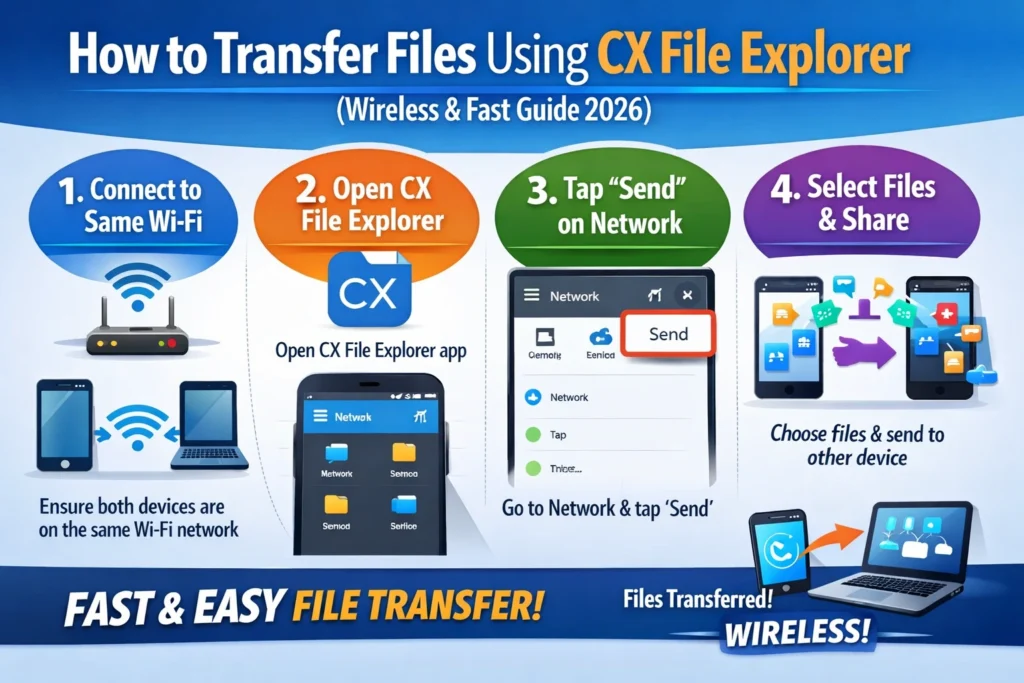
If you want to transfer files from your Android phone to PC without using a USB cable, CX File Explorer makes it simple. In this guide, you will learn how to transfer files wirelessly, how FTP works, and how to fix common connection problems.
This step by step tutorial is beginner friendly and works for Windows, Mac, and other devices on the same network.
Why Use CX File Explorer for File Transfer?
Many users still use USB cables for file transfer. But wireless transfer is:
- Faster for small and medium files
- More convenient
- No cable required
- Easy to set up
- Works on same WiFi network
CX File Explorer includes a built in FTP feature that allows direct file sharing between phone and PC.
Requirements Before Starting
Before you begin, make sure:
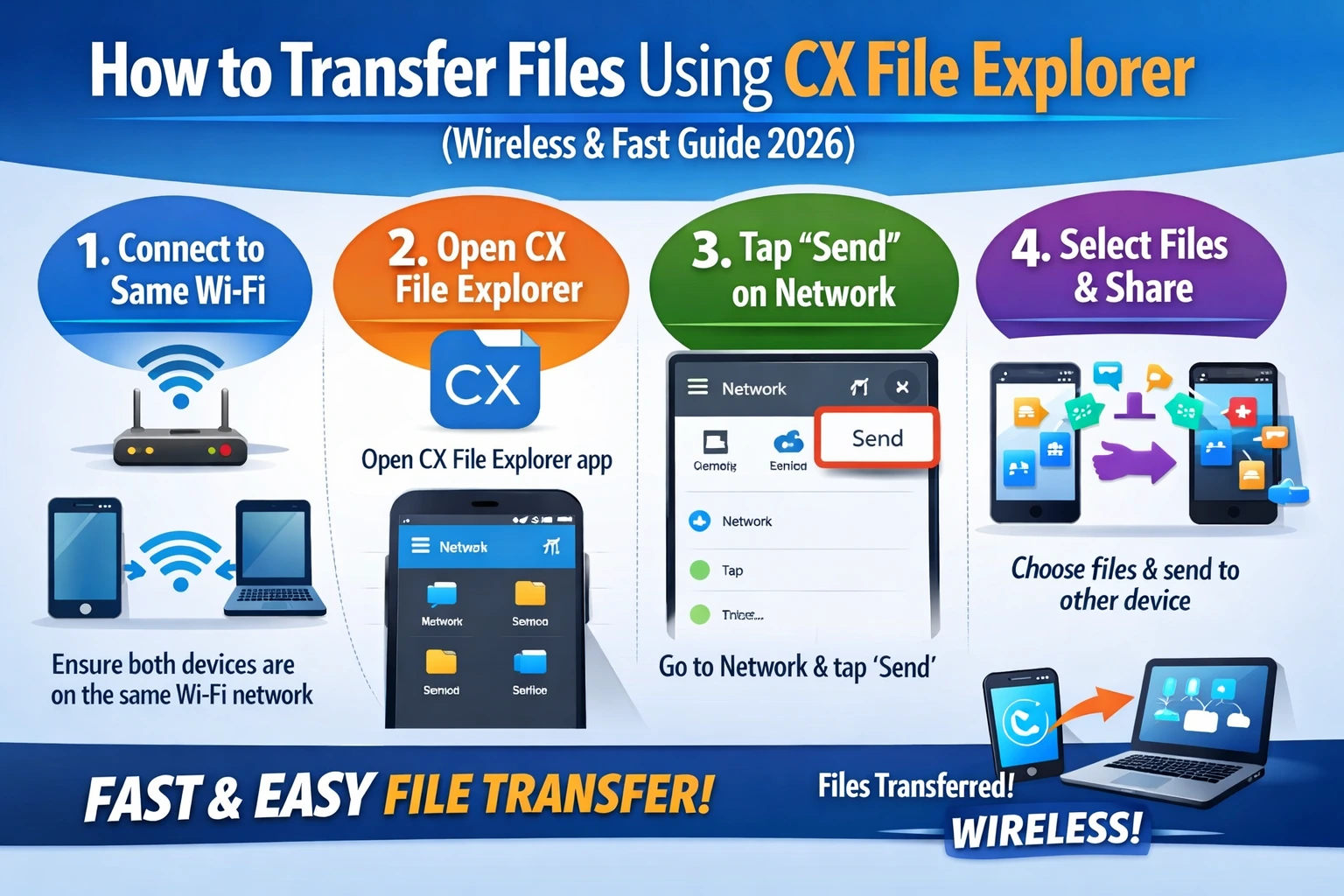
- Your phone and PC are connected to the same WiFi network
- CX File Explorer is installed on your Android device
- Both devices are on the same local network
If WiFi is different, the connection will not work.
Method 1: Transfer Files Using FTP (Recommended)
This is the easiest and most reliable method.
Step 1: Open CX File Explorer
Launch the app on your Android phone.
Step 2: Go to Network Section
On the home screen, tap on Network.
Step 3: Enable Access from Network
Tap on Access from Network.
You will see an FTP address like:
ftp://192.168.1.5:2121
Keep this screen open.
Step 4: Open FTP Address on PC
On your computer:
- Open File Explorer (Windows)
- Type the FTP address in the address bar
- Press Enter
For Mac:
- Open Finder
- Click Go
- Select Connect to Server
- Paste the FTP address
Now your phone storage will appear on your computer.
How to Send Files from Phone to PC
Once connected:
- Open any folder on your PC
- Drag files from phone storage
- Drop them into your PC folder
File transfer will begin instantly.
Speed depends on your WiFi connection.
How to Send Files from PC to Phone
You can also move files from PC to mobile.
- Open the connected phone folder
- Drag files from PC
- Paste into any phone directory
Make sure you have storage space available.
Alternative Method: Using SMB Connection
If your PC has file sharing enabled, you can also use SMB.
Steps:
- Open Network section in CX File Explorer
- Tap New Location
- Select SMB
- Enter PC IP address
- Enter username and password
This method is useful for advanced users.
Transfer Speed Tips
To get faster file transfer:
- Use 5GHz WiFi if available
- Stay close to router
- Close background apps
- Avoid transferring large files during heavy internet usage
Good network gives better speed.
Common Problems and Fixes
Problem 1: FTP Address Not Opening
Solution:
- Make sure both devices are on same WiFi
- Disable VPN
- Restart router
Problem 2: Connection Refused Error
Solution:
- Turn off firewall temporarily
- Recheck FTP address
- Restart CX File Explorer
Problem 3: Slow Transfer Speed
Solution:
- Move closer to router
- Use faster WiFi band
- Pause heavy downloads
Most problems are network related.
Is Wireless Transfer Safe?
Yes, when you use local WiFi network at home.
However:
- Avoid using public WiFi
- Turn off network access after transfer
- Do not share FTP link publicly
Security depends on your network safety.
Advantages of Using CX File Explorer for Transfer
- No USB cable required
- Simple interface
- Fast setup
- Free to use
- Works with Windows and Mac
It saves time and makes file management easier.
Frequently Asked Questions
Open the app, go to Network, enable Access from Network, copy the FTP address, and enter it into your PC file explorer to start transferring files.
No, both devices only need to be connected to the same WiFi network. Internet is not required.
Make sure both devices are on the same WiFi, disable VPN, and check that your firewall is not blocking the connection.
Yes, it is safe on a private home network. Avoid public WiFi when transferring important files.
Yes, but speed depends on your WiFi strength and network stability.
Final Thoughts
CX File Explorer makes wireless file transfer simple and efficient. You do not need extra software or complicated setup. Just connect both devices to the same WiFi network and enable network access.
For regular file sharing between phone and PC, this method is reliable and convenient. Once you try it, you may never go back to USB cables.