CX File Explorer Complete Guide for Beginners (2026)
If you are new to CX File Explorer and want to understand how it works, this complete beginner guide will help you step by step. In this article, you will learn what CX File Explorer is, its main features, how to use it, and how to get the best results from it.
Whether you want to manage files, transfer data to your PC, or connect cloud storage, this guide covers everything in simple language.
What is CX File Explorer?
CX File Explorer is a free Android file manager app that allows users to browse, manage, move, delete, compress, and share files on their mobile devices.
It also supports:
- Internal storage management
- SD card browsing
- Cloud storage integration
- Network file sharing
- Storage analysis
The app is lightweight, clean, and does not show annoying ads like many other file manager apps.
Main Features of CX File Explorer
Here are the core features that make this app popular:
1. Easy File Management
You can:
- Copy and move files
- Rename files and folders
- Delete unwanted data
- Create new folders
- Compress files into ZIP
The interface is simple, so even beginners can use it easily.
2. Storage Analyzer
The storage analysis feature shows:
- Large files
- Duplicate files
- Unused apps
- Cache data
This helps you free up space quickly.
3. Cloud Storage Support
You can connect:
- Google Drive
- Dropbox
- OneDrive
- Box
This allows you to manage cloud files directly inside the app.
4. Network Access
CX File Explorer supports:
- FTP
- SFTP
- SMB
- NAS storage
You can access files from your PC or shared network easily.
5. App Management
You can:
- View installed apps
- Uninstall apps
- Backup APK files
This is useful if you want to save app versions.
How to Download and Install CX File Explorer
Follow these steps:
- Download the latest version from a trusted source.
- If installing APK manually, enable “Install from Unknown Sources” in settings.
- Open the APK file.
- Tap Install.
- Wait for installation to complete.
After installation, open the app and allow necessary permissions.
How to Use CX File Explorer (Step by Step)
Step 1: Open the App
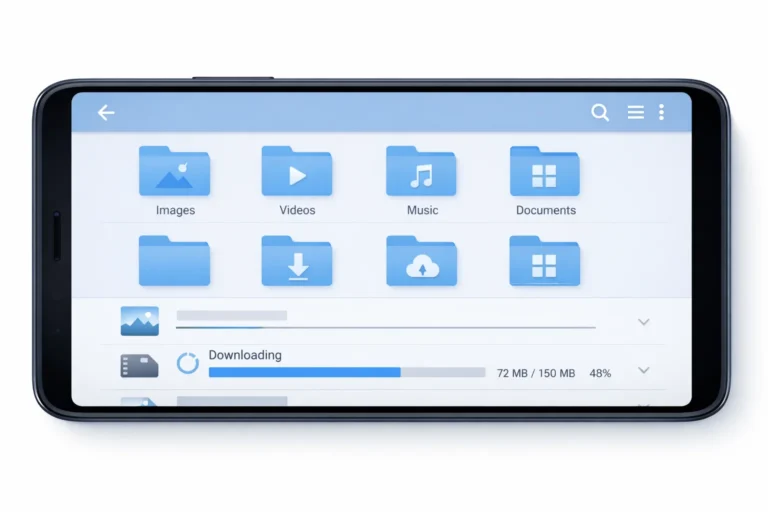
When you open CX File Explorer, you will see:
- Main storage sections
- Categories like Images, Videos, Documents
- App manager
- Clean storage option
Step 2: Browse Files
Tap on “Main Storage” to explore your internal storage.
You can scroll through folders and open files easily.
Step 3: Move or Copy Files
- Long press a file
- Select Copy or Move
- Choose destination folder
- Tap Paste
That’s it.
Step 4: Delete Unwanted Files
Long press the file and tap Delete.
Always double check before deleting important data.
How to Transfer Files from Phone to PC
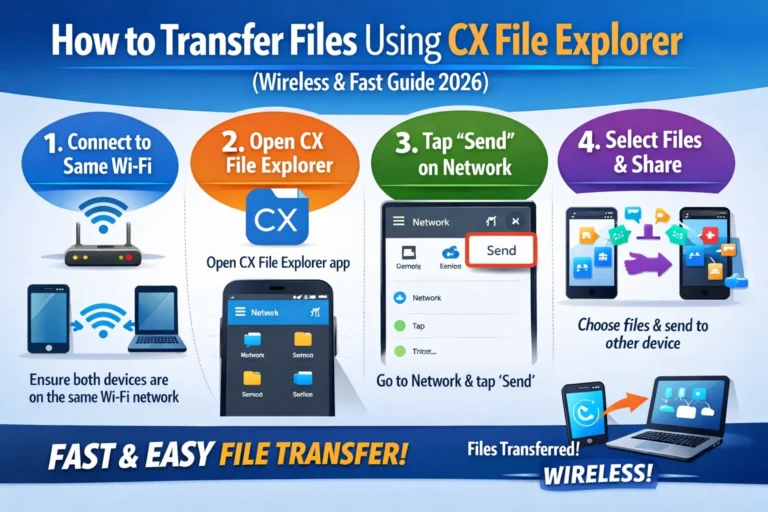
One of the best features is wireless file transfer.
Follow these steps:
- Connect your phone and PC to the same WiFi network.
- Open CX File Explorer.
- Go to Network section.
- Enable “Access from Network”.
- You will see an FTP address.
- Enter that address in your PC browser.
Now you can transfer files without USB cable.
How to Connect Cloud Storage
To connect Google Drive or other cloud storage:
- Open the app
- Go to Network tab
- Select Add Cloud Storage
- Choose your cloud service
- Sign in and allow access
Your cloud files will now appear inside the app.
Best Settings for Beginners
To get better performance, follow these tips:
- Enable dark mode if you prefer
- Turn on file sorting by date or size
- Use storage analyzer weekly
- Clear cache regularly
- Avoid giving unnecessary permissions
These small settings improve usability.
Is CX File Explorer Safe?
Yes, CX File Explorer is generally safe when downloaded from trusted sources.
It does not contain harmful ads and does not force unwanted permissions.
However, always:
- Download from official or trusted website
- Avoid modified versions from unknown sources
- Keep the app updated
Safety also depends on where you download it from.
Common Problems and Fixes
Problem 1: App Crashing
Solution:
- Clear app cache
- Restart phone
- Update to latest version
Problem 2: Network Not Connecting
Solution:
- Make sure both devices are on same WiFi
- Disable firewall temporarily
- Recheck FTP address
Problem 3: Storage Not Updating
Solution:
- Refresh storage
- Restart the app
- Clear background apps
Most issues are minor and easy to fix.
Why Use CX File Explorer Instead of Other File Managers?
Here are some reasons:
- Clean interface
- No heavy ads
- Lightweight
- Cloud and network support
- Free to use
Compared to many file manager apps, CX offers a balanced experience without too many distractions.
Frequently Asked Questions
Quick answers about CX File Explorer (2026).
What is CX File Explorer used for?
Is CX File Explorer free?
How do I transfer files using CX File Explorer?
Is CX File Explorer safe to install?
Does CX File Explorer support cloud storage?
Final Thoughts
CX File Explorer is a powerful yet simple file manager app for Android users. Whether you want to manage storage, transfer files, connect cloud accounts, or clean your device, this app can handle everything smoothly.
For beginners, it is easy to learn and does not feel complicated. With regular use, you can keep your device organized and free from unnecessary clutter.
If you are looking for a reliable Android file manager, CX File Explorer is definitely worth trying.